How to Animate an Image Using Grok: Complete Step-by-Step Guide
Creating motion from a still image once required professional animation software and technical skills. Today, with Grok AI image animation, anyone can turn static images into engaging visuals within minutes. Whether you want blinking eyes, moving clouds, flowing hair, or subtle cinematic motion, Grok makes it easy to animate images with AI using simple text instructions.
This comprehensive guide explains how to animate an image using Grok, including step-by-step instructions, best prompts, expert tips, and advanced techniques. Even if you have no animation experience, you can create high-quality AI animated images for social media, websites, presentations, or marketing campaigns.
Understanding Grok AI Image Animation
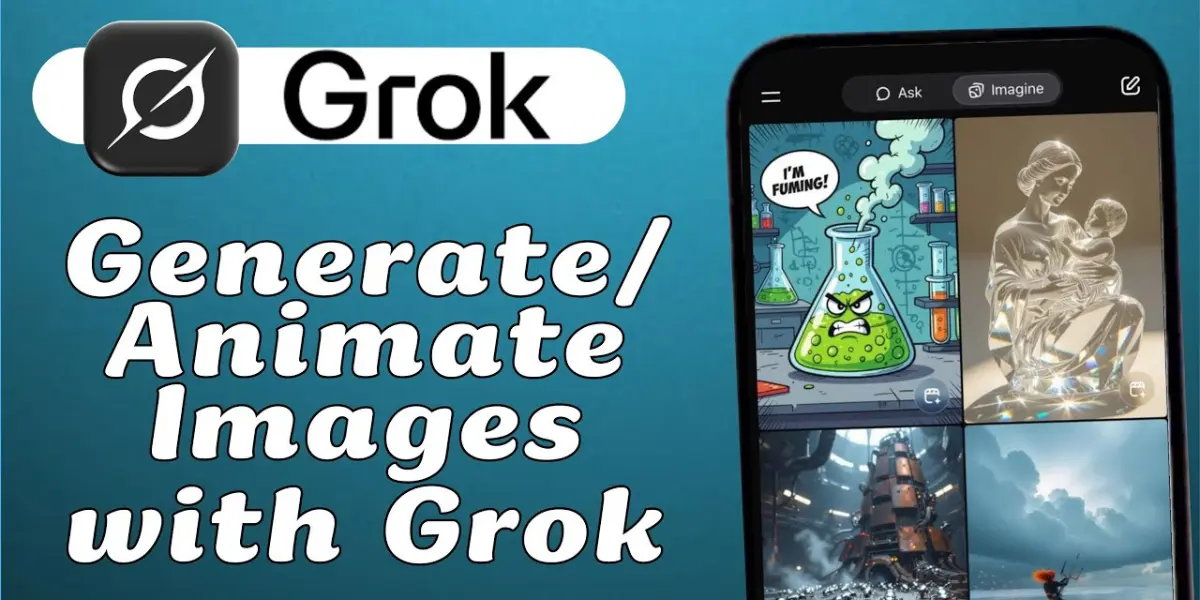
Grok is an advanced AI animation tool that converts static images into dynamic visuals. It uses artificial intelligence to understand different elements in an image and applies motion based on your prompt. Instead of manually creating frames, the AI animation generator automatically produces smooth movement.
With Grok animation tool, you can:
- Add subtle facial movements like blinking or smiling
- Animate hair, clothing, or water effects
- Create moving backgrounds such as clouds or particles
- Generate looping animations for social media
- Turn illustrations into cinematic motion images
- Create animated logos using AI motion effects
This image to animation AI technology is ideal for content creators, marketers, designers, and beginners who want fast results without complicated software.
However, Grok usually produces short animations, loops, or GIF-style outputs instead of full-length videos. You can combine these clips later using video editing tools if needed..
Step 1: Choose the Best Image for AI Animation
Choosing the right image is the foundation of good AI image animation. The better your image quality, the smoother your animation will look.
Follow these tips when selecting an image:
- Use high-resolution images for better motion clarity
- Keep the main subject clearly visible
- Avoid cluttered backgrounds
- Choose images with depth and contrast
- Use illustrations for smoother animation
Images that work best for animate images with AI include:
- Portrait photos
- Digital artwork
- Cartoon characters
- Product images
- Logos
- Landscape photos
A clean image helps the AI motion generator detect separate elements, resulting in more natural movement.
Step 2: Upload Your Image in Grok
Once your image is ready, open Grok in your browser or mobile device. Upload the file and wait for it to appear in the interface. The AI animation generator will prepare your image for motion.
Grok supports:
- Photographs
- Digital illustrations
- Logos
- Drawings
- Screenshots
After uploading, you can start using Grok animation prompts to generate movement.
Step 3: Write Clear Prompts for Animation
The most important step in AI image animation is writing clear instructions. The AI motion generator follows your prompt, so detailed descriptions produce better results.
Your prompt should include:
- What should move
- Movement type
- Direction
- Animation style
- Loop preference
Examples of best prompts for Grok AI animation:
Animate the hair gently moving in the wind and add slow blinking.
Create a cinematic loop with drifting particles and soft zoom.
Make the character wave with a sparkling background.
Animate this logo with subtle glow and slow rotation.
These prompts help create smooth AI animated images.
Step 4: Refine the AI Animation
Your first image to animate AI results may need adjustments. Grok allows easy refinement using additional prompts.
You can refine:
- Animation speed
- Motion intensity
- Loop smoothness
- Lighting effects
- Background movement
Example refinement prompts:
Make the motion slower and smoother
Add subtle background movement
Loop seamlessly
Reduce motion intensity
Refining improves the overall AI animation quality.
Step 5: Download Your Animated Image
Once satisfied, download the animation generated by the AI animation tool. Grok usually provides:
- Short video clips
- Looping animations
- GIF-style outputs
- Frame sequences
These AI animated images can be used for:
- Social media content
- Website banners
- Blog illustrations
- Marketing visuals
- Presentations
This makes animating images with AI extremely useful for content creators.
Best Prompts for Professional Grok Animations
Using strong prompts improves Grok AI animation results.
Realistic Motion
Animate subtle breathing movement and gentle blinking.
Background Animation
Create moving clouds and soft lighting effects.
Cinematic Animation
Add slow zoom with drifting particles.
Logo Animation
Make the logo glow and rotate slowly.
Social Media Loop
Create a short seamless looping animation.
These Grok animation prompts help produce professional visuals..
Tips for Better AI Animated Images
Follow these tips to improve your AI image animation:
- Use high-resolution images
- Keep prompts simple and clear
- Specify movement direction
- Choose subtle motion for realism
- Request seamless loops
- Use cinematic keywords
- Refine instead of restarting
- Avoid too many moving elements
These tips enhance AI animation generator output quality.
Advanced Grok Animation Techniques
Once you understand the basics, try advanced animated images with AI techniques.
Multi-Frame Animation
Ask Grok to generate multiple frames showing movement progression. Combine them into a video later.
Background-Only Motion
Keep the subject static and animate only the background for subtle effects.
Cinematic Zoom Effect
Request slow zoom for a professional feel.
Parallax Animation
Animate foreground and background separately to create depth.
Seamless Loop Creation
Ask Grok to create a loop suitable for social media posts.
These techniques help create professional AI animated images.
Common Mistakes to Avoid
Avoid these mistakes when using Grok animation tool:
- Using low-quality images
- Writing vague prompts
- Adding too much motion
- Ignoring loop settings
- Not refining results
Avoiding these issues improves AI motion generator performance.
Use Cases for Grok AI Animation
You can use AI animated images for:
- Social media posts
- Website hero sections
- Marketing ads
- Product promotion
- Blog visuals
- YouTube thumbnails
- Portfolio content
This makes image to animation AI valuable for both beginners and professionals.
Why Use Grok for AI Image Animation
Here are key benefits of Grok AI animation:
- Beginner-friendly interface
- No software installation required
- Fast animation generation
- High-quality motion effects
- Works with multiple image types
- Easy prompt-based control
- Ideal for marketing content
These features make Grok one of the best AI animation tools available.
Conclusion
Animating images using Grok is simple and powerful. By selecting a good image, writing clear prompts, refining motion, and downloading the result, you can create engaging AI animated images quickly. Whether you need subtle motion or cinematic effects, Grok AI image animation provides an easy solution for turning still visuals into dynamic content.
With practice and effective Grok animation prompts, you can produce high-quality AI animation for social media, websites, and marketing projects. For more guides, prompt ideas, and AI tutorials, you can also visit zerogrok.com, where additional resources can help you improve your animation workflow and creativity.
FAQs
Can Grok animate any image?
Yes, it supports photos, illustrations, and logos.
Does Grok create GIFs or videos?
It generates short clips and looping animations.
Can I control animation speed?
Yes, you can specify speed in your prompt.
Do I need experience?
No, the AI animation tool works with simple instructions.
Can I refine animations?
Yes, you can adjust motion anytime.
Is Grok good for professional use?
Yes, AI animated images can be used in marketing and design.