How to Animate an Image Using Grok: Complete Guide
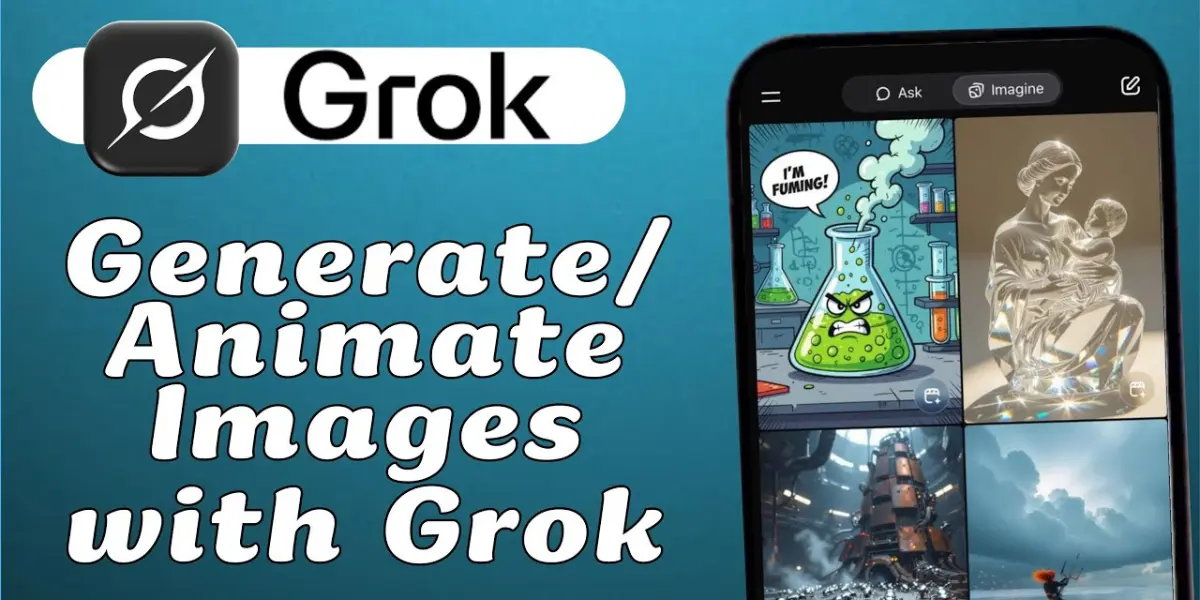
Grok by AI lets you bring images to life with motion. From subtle movements like blinking eyes or flowing hair to looping effects in backgrounds, Grok can transform a static image into something dynamic. This guide explains how to animate images using Grok step by step, with clear instructions and tips to get professional-looking results even without prior editing experience.
1. Understanding Grok Image Animation Capabilities
Before diving in, it is important to know what Grok can and cannot do when animating images. Grok can:
- Add subtle motion to certain parts of an image, such as hair, clothing, or facial expressions.
- Create background effects like moving clouds, drifting particles, or dynamic lighting.
- Generate looping animations for social media or presentations.
- Transform illustrations into cartoon-like or cinematic motion images.
However, Grok does not create fully animated movies. Its animations are generally short clips, looping images, or stylized frames that simulate movement. For full-length videos, you can combine Grok-generated frames with video editing software.
2. Preparing Your Image for Animation
The first step is to prepare the image you want to animate. The quality of your final animation depends heavily on the clarity of your image.
- Use high-resolution images whenever possible.
- Ensure the main subject is clearly visible and separated from the background.
- Avoid images that are too cluttered or low-quality, as motion may appear unnatural.
- Digital artwork, illustrations, and logos generally produce the best results for animation.
By starting with a clean image, you give Grok the best chance of producing smooth, professional-looking motion.
3. Uploading the Image in Grok
Once your image is ready, open Grok either on your device’s browser or the mobile app. Look for the upload option, and select the image you want to animate. Grok accepts:
- Photographs
- Drawings
- Digital illustrations
- Logos
- Screenshots
After uploading, the image will appear in the interface, ready for you to give animation instructions.
4. Giving Clear Instructions for Animation
This is the most critical step. The better your instructions, the more natural and polished the animation will be. Describe:
- What should move – hair, clothing, background, eyes, or objects.
- Movement style – slow, fast, wavy, subtle, or looping.
- Direction – left, right, up, down, or circular motion.
- Style of animation – cartoon, cinematic, realistic, or aesthetic.
Examples of effective prompts:
- Animate the character’s hair to sway gently in the wind and blink slowly.
- Create a moving background with clouds drifting from left to right.
- Make this illustration loop with the character waving their hand.
- Add a subtle shimmer to the logo with rotating motion.
Providing these details ensures that Grok produces smooth and visually appealing animations.
5. Refining Your Animation
Sometimes the first version may not be exactly what you envisioned. Grok allows you to refine your animations with simple instructions:
- Make the movement slower.
- Loop the animation seamlessly.
- Add more natural motion to the clothing.
- Enhance the light or particle effects.
- Zoom in slightly to create a cinematic effect.
Refinement is key to creating a polished final product. You can repeat this process multiple times until the animation meets your expectations.
6. Downloading and Using the Animation
Once satisfied, you can download your animated image. Depending on your settings and prompt, Grok can produce:
- Short video clips
- Looping GIF-style animations
- Stylized frames that can be compiled into videos
These animations can be used for:
- Social media posts
- Digital presentations
- Personal projects or portfolios
- Website illustrations
The downloaded file is ready to share or edit further if needed.
7. Best Prompts for High-Quality Animations
Using the right prompts is essential to get professional-quality results. Here are some suggestions:
For Realistic Motion:
- Animate this photo with subtle hair movement and gentle eye blinking. Keep motion natural and smooth.
For Cartoon or Illustration Effects:
- Create a looping cartoon animation where the character waves and the background sparkles move.
For Dynamic Cinematic Motion:
- Turn this image into a cinematic loop with soft zoom, drifting particles, and lighting effects.
For Logo Animation:
- Make this logo shimmer, rotate slowly, and loop seamlessly for social media.
Clear, descriptive prompts produce animations that look natural, polished and professional.
8. Tips for Better Animations
- Always start with a high-resolution image.
- Give concise and specific instructions about movement and style.
- Specify speed and direction.
- Decide whether the animation should loop.
- Use descriptive adjectives like smooth, subtle, cinematic or cartoon.
- If the result is not perfect, refine instructions instead of starting over.
These tips help you get the most out of Grok’s animation features.
9. Advanced Tips
- For multi-frame animation, ask Grok to generate sequential frames showing movement. You can then combine them into a video using editing software.
- For social media, focus on short loops or GIFs to make content more engaging.
- For illustrations, you can ask Grok to add background motion while keeping the character static.
- Experiment with styles: cinematic, cartoon, retro or aesthetic to make your animations unique.
Conclusion
Animating images is easy with Grok. By preparing your image, giving clear instructions, refining the motion and downloading the result you can create dynamic, eye-catching animations for social media, presentations or personal projects. With practice and the right prompts your still images can come to life in just a few simple steps.
FAQs
1. Can Grok animate any type of image?
Yes, including photographs, illustrations, and digital art.
2. Does Grok create GIFs or videos?
It produces short video clips or looping animations. For full videos, combine frames in editing software.
3. Can I control animation speed?
Yes, you can request slow, medium or fast motion.
4. Do I need special software?
No, everything is done directly in Grok.
5. Can Grok animate facial expressions?
Yes, subtle expressions like blinking, smiling, and head movement are possible.
6. Do I need experience to animate images?
No, clear instructions are all you need.
7. Can I refine an animation if it’s not perfect?
Yes, you can adjust speed, direction, looping, and motion details multiple times.
8. Is Grok suitable for professional projects?
Yes, animations created can be used for social media, presentations, portfolios, and web content.